
Git is a version control system that allows developers to manage and collaborate on code. Here are some common Git commands and how to use them in different command line interface :
- Clone a repository:
git clone <repository URL>
This command allows you to make a copy of a repository on your local machine. You can use this command in any command line interface, including Git Bash, Windows PowerShell, and the Windows Command Prompt.
- Check the status of your repository:
git status
This command shows you which files have been modified, added, or deleted in your local repository. You can use this command in any command line interface.
- Add changes to the staging area:
git add <file name>
This command adds changes to the staging area, which is where changes are prepared to be committed. You can use this command in any command line interface.
- Commit changes:
git commit -m "<commit message>"
This command creates a new commit with the changes that you’ve added to the staging area. The commit message should describe the changes that were made. You can use this git commands in any command line interface.
- Push changes to a remote repository:
git push
This command sends your commits to the remote repository, which is usually hosted on a platform like GitHub or Bitbucket. You can use this command in any command line interface.
- Pull changes from a remote repository:
git pull
This command fetches and merges changes from the remote repository into your local repository. You can use this command in any command line interface.
Note: Git Bash is a command line interface that comes with Git, and it’s available on Windows, Mac, and Linux.
BRANCH
The git branch command is used to list, create, and delete branches in Git. Here are some common use cases of this command:
- List all branches:
git branch
This command lists all branches in your local repository. The current branch is marked with an asterisk (*).
- Create a new branch:
git branch <branch name>
This command creates a new branch with the specified name.
- Switch to a different branch:
git checkout <branch name>
This command switches to the specified branch.
- Create a new branch and switch to it:
git checkout -b <branch name>
In This command creates a new branch with the specified name and switches to it. This is equivalent to running git branch <branch name> and git checkout <branch name> in sequence.
- Delete a branch:
git branch -d <branch name>
This command deletes the specified branch. You cannot delete the branch that you are currently on. If the branch has unmerged changes, you will be prompted to confirm the deletion.
This allows developers to create branches for new features, bug fixes, or experiments without affecting the main codebase. Once the changes have been tested and reviewed, they can be merged into the main branch using the git merge command.
To tell Git who you are, run the following two commands
$ git config –global user.email “example@gmail.com”
$ git config –global user.name “exampleName exampleLast”
If you want to check Git Config
git config user.email
git config user.name
Starting a New Local Repository
$ git init
 NOTE : After run this command you see .git file in a folder

Check status
$ git status

Add File
$ git add <filename> (add single file)
$ git add <filename> <filename> <filename> (add selected file)
$ git add . / git add --all / git add -A (add multiple file)

Commit
$ git commit -m "<Enter message>"


Push
$ git push -u origin master

Pull
$ git pull origin master
Now you need to bind this remote repository to your local repository:
$ git remote add origin https://github.com/YourUsername/some-small-app.git
Repository Clone
$ git clone git@github.com:YourUsername/your-app.git
Switching branches
$ git checkout branchName
Created New Branch
$ git checkout -b branchName
Branch Merge
$ git merge master
Fetch branch
$ git fetch
Fetch data and branch both
$ git all
Linux Commands
clear (Command line Clear)
cd <Folder / File name> (Change Directory)
ls (lists all the files in the subdirectories.)
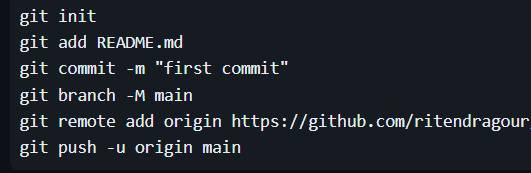
First Time Upload project in Git follow us:
Complete Clone , PUll
$ git clone “repository_clone_path”
$ git pull origin main
you have already create branch so you follow this command otherwise firstly please create your branch then follow ahead
$ git checkout OUR_BRANCH_NAME
$ git pull OUR_BRANCH_NAME
Please check Status all clear are not (use git status)
$ git merge “main”
$ git push
Docker Compose
Please check path ? make sure in a path have docker-compose file
docker-Compose up
More know about git Contact us